If your Xero integration breaks, I’d check four things first: access, connection, data mapping, and report match. That order helps me fix the issue without making month-end reporting worse.
Here’s the short version:
- I confirm I’m in the right Xero organization
- I check Xero, bank feed, and app status
- I save the exact error, time, and last good sync
- I fix bank feed, OAuth, or sync job failures
- I review account mapping, tracking categories, and date filters
- I compare Xero reports vs. dashboards
- I add monthly checks for API limits, token renewals, and bank rules
The reason this matters is simple: 30% to 50% of integration projects fail because of bad setup or bad data. And one small issue - like an expired token or old bank rule - can throw off cash balances, P&L, and board reporting.
A few warning signs usually show up first:
- OAuth errors → sync stops
- Missing bank transactions → cash balance is off
- Duplicate entries → revenue or expenses look too high
- Uncategorized transactions → account coding goes wrong
- Dashboard totals that don’t match Xero → filters, mappings, or report basis may be off
I’d use this checklist in one pass: confirm status, isolate the issue, fix the cause, verify the data, then validate reports. That keeps the close on track and cuts down on bad re-syncs.
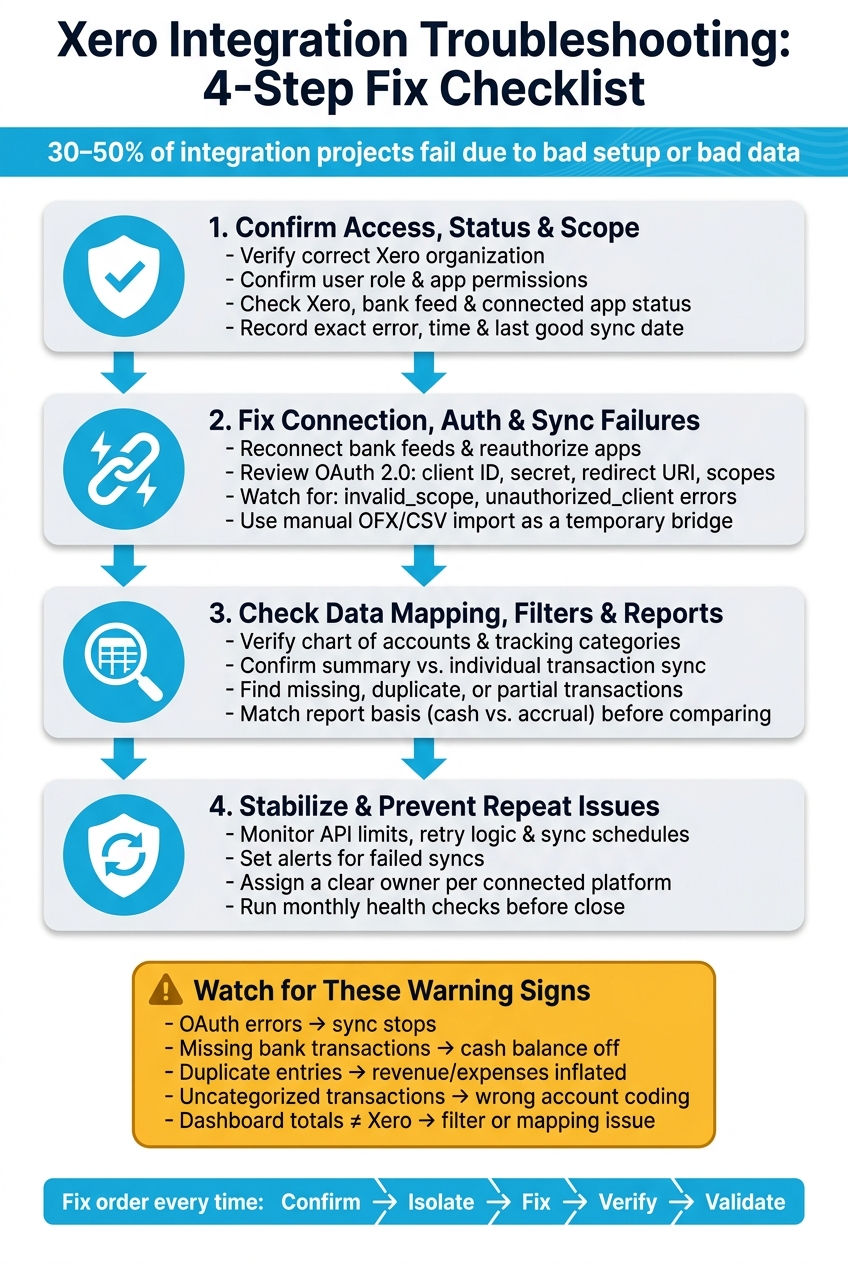
Xero Integration Troubleshooting: 4-Step Fix Checklist
How to Fix Xero Account Connection Error Full Guide 2026

sbb-itb-17e8ec9
Step 1: Confirm Access, Service Status, and the Scope of the Problem
First, make sure the issue is tied to the right organization and the active sync path. Before you change anything, confirm you're in the correct Xero organization, that the right user has access, and that you're looking at the live connection that handles the sync.
Verify the Correct Xero Organization, User Access, and U.S. Settings
Log into Xero and check that the organization name matches the entity you're working on. Then review your user role and app permissions so you know you can access the settings needed to fix the problem.
This sounds basic, but it's an easy place to trip up. If you're in the wrong organization or signed in with a user that has limited access, you can waste a lot of time chasing the wrong issue.
Confirm these items before you touch any settings:
- The correct Xero organization
- The user's role and access level
- The app permissions tied to the sync
- The U.S. settings in use for that organization, if those settings affect the connection
Check Xero, Bank Feed, and Connected App Status
Next, check the status of Xero, the bank feed, and the connected app before changing any settings. If one of them shows a disruption, sync alert, or sync job failure, stop there and wait for the issue to clear.
Make a note of which module is affected. That helps narrow the scope of the problem and keeps you from making changes in the wrong place.
Only move to connection fixes after you confirm there isn't a platform or service outage.
Record the Error Before Making Any Changes
Before you refresh, reconnect, or reauthorize anything, capture the exact failure. Take a screenshot of the error, note the time, and record the last successful sync date. If you can, also note which module is affected.
It also helps to log any changes made right before the failure, especially password resets or permission updates. Those small details often point straight to the cause.
Step 2: Fix Connection, Authentication, and Sync Failures
Once you've confirmed the scope, it's time to fix the problem. Start with the connection itself: reconnect the feed, reauthorize access, and then get sync jobs running again. If service status looks fine, work through the connection layer in this order: feed, auth, then sync jobs.
Reconnect Bank Feeds and Connected Apps
First, look for disconnected links or permission errors. If a feed has dropped, reauthorize it and make sure the integration points to the correct Xero organization. That part matters more than it seems.
If it's tied to the wrong organization, transactions won't show up where you expect them to. On the surface, it can look like the feed is working. In practice, the data is just landing in the wrong place.
Check OAuth 2.0 Settings and Token Rotation
Expired tokens and stale refresh tokens are a common cause of sync failures. That matches the same "OAuth errors or expired tokens" warning sign from the table above. Review the setup closely:
- client ID
- client secret
- redirect URI
- scopes
- refresh-token handling
Watch for common failure messages like invalid_scope, unauthorized_client, or syncs that stop right after a permission change. If your app offers built-in OAuth handling, use it. Manual token refresh tends to go wrong in small, annoying ways.
If the feed still won't sync, switch to a manual import so transactions stay up to date.
Use a Manual Import If the Bank Feed Is Down
Use manual import as a short-term bridge while you repair the connection. If the feed is down, import an OFX or CSV file into Xero. Use U.S. formatting: $ amounts, commas for thousands, decimals for cents, and MM/DD/YYYY dates.
Step 3: Check Data Mapping, Date Filters, and Report Accuracy
Once the connection is live, make sure the mapped data and report settings are correct. A live feed can still show bad numbers when account mapping, filters, or sync settings are off.
Review Chart of Accounts, Tracking Categories, and Sync Filters
Start with your revenue, expense, and balance sheet accounts. Confirm they line up with the accounts used in the integration.
Then check tracking categories, such as departments or cost centers. This part is easy to overlook, but it matters a lot. If a category is set up the wrong way, spend can land in the wrong account or tracking category across every report.
You should also confirm whether the integration uses summary sync or individual transaction sync. Summary sync rolls transactions into one daily invoice. That can make reports look clean, but it can also hide item-level mistakes. If you're trying to review burn rate or cash runway in detail, individual transaction sync gives you a much clearer view.
If the mapping looks right, move down to the transaction level.
Find and Fix Missing, Duplicated, or Partial Transactions
After that, compare Xero output with your dashboards for the same date range. Open the bank reconciliation view and line it up with the source system for that same period.
Look for a few common issues:
- Gaps between pending and posted transactions
- Skipped date ranges
- Duplicate entries from overlapping sync cycles
If the problem shows up in one month, re-run only that date range instead of forcing a full resync.
Before you re-sync anything, review the data across four checks: completeness, consistency, duplication, and recency. Also inspect your bank rules during reconciliation. Old rules can code transactions the wrong way month after month.
Compare Xero Reports to Automated Dashboards and Board Packs
Pull Xero reports for the same period, then compare totals line by line. If the numbers don't match, use the table below to go straight from symptom to likely cause.
| Issue Type | Likely Root Cause | Checklist Step to Resolve |
|---|---|---|
| Missing Tax Data | Integration may not support US sales tax | Install a tax-specific app from the Xero App Store |
| Incomplete or Duplicate Transactions | Summary sync or overlapping sync cycles | Switch to individual transaction sync and resolve duplicates at the architecture layer before re-syncing |
| Misclassified Fees | Incorrect Chart of Accounts mapping for gateway fees | Review the daily summary invoice breakdown and re-map accounts |
| Basis Mismatch | Cash vs. accrual basis mismatch | Compare Xero Cash Position to Profit and Loss reports |
| Latency | Data volume growth degrading sync performance | Check API limits and sync schedules |
Match the report basis before comparing totals. Cash and accrual reports won't line up.
If your team wants a faster way to check report accuracy without pulling reports by hand, AI-enabled connectors can expose tools like get_profit_and_loss and get_cash_position to pull real-time summaries straight from Xero.
Step 4: Stabilize the Integration and Prevent Repeat Issues
After the fix is live, move into monitoring mode. Once syncs and mappings are back on track, put guardrails in place so the same problems don't pop up again. Keep your attention on the usual trouble spots: feed drops, expired auth, mapping drift, and stale reports.
Monitor API Limits, Retry Logic, and Sync Schedules
API limits and large sync jobs can trigger timeouts as data volume climbs. Spread out large sync runs, and set alerts for failed syncs so issues don't sit in the background unnoticed. Review OAuth 2.0 token renewals and retry behavior too. If a connection goes stale, you don't want it failing silently for days.
It also helps to give each connected platform a clear owner. When one person is responsible, issues get picked up faster. Alongside that, keep a simple data-flow map. Nothing fancy. Just enough to show how data moves between systems and where manual handoffs happen.
Run a Monthly Health Check Before Month-End Close and Reporting
Use a monthly review to catch drift before close.
| Health Check Area | Monthly Task | Why It Matters |
|---|---|---|
| Connectivity (Step 2) | Review failed sync logs and API status | Catches timeout patterns before they affect reports |
| Data Integrity (Step 3) | Check for duplicates, partial records, and stale data | Prevents incorrect data from reaching dashboards |
| Automation (Step 3) | Review bank rules and the chart of accounts | Keeps new vendors and expense categories classified correctly |
| Reporting (Step 3) | Spot-check the P&L and balance sheet | Confirms the numbers are ready for board reporting |
| Compliance (Step 2) | Verify U.S. sales tax handling and token renewals | Keeps tax handling and access current |
Conclusion: The Core Troubleshooting Steps to Follow Every Time
Every Xero integration fix should follow the same order: confirm status, isolate the failure, fix auth or config, verify data, and then validate reports. That sequence matters. Skip the verification step, and a small issue can turn into a month-end close mess.
Use the same flow every time:
- Confirm status
- Isolate the failure
- Fix auth or configuration
- Verify the data
- Validate the reports
FAQs
How do I know if the issue is with Xero or the connected app?
Trace the data flow to find where the problem begins. Start with the connected app’s status and make sure authentication still works, including OAuth2 tokens.
Then check error logs in the app and in Xero. You’re looking for the exact cause of the failure, such as an API limit, an invalid endpoint, a schema mismatch, or a data validation error.
After that, review transaction logs in both systems to see exactly where the sync stops.
When should I re-sync one date range instead of everything?
Re-sync a specific date range when the problem is tied to a known window of time, like a missed transaction or a sync failure during that period.
This targeted approach helps you avoid duplicates and cuts down the time and effort spent reprocessing past data that's already correct.
Why don't my dashboard totals match Xero reports?
Dashboard totals can differ from Xero reports for a pretty simple reason: the data underneath them isn’t always clean.
Incomplete records, stale sync data, or duplicate entries can throw numbers off. You can also run into trouble when naming conventions or field structures don’t line up between systems. Even small mismatches in setup can lead to different totals on each side.
Another common issue is transaction coding. Automated bank rules or an outdated chart of accounts can put items in the wrong category, which changes how your finances appear in reports and dashboards.
Lucid Financials helps close those gaps by validating data, merging duplicate records, and flagging anomalies in real time.